Retracting tri-mesh intersections
Use the Retract to Other Surfaces form to locate and resolve tri-mesh intersections. You can select tri-meshes to retract, set a maximum retraction distance, preview the retraction step in the 3D view, adjust the retraction distance if necessary, and then execute the retractions process.
The result of the retraction step will be the removal of the part of the retracted tri-mesh that sticks through another tri-mesh. The retraction distance is a margin that is used to define how far inward from the boundary is searched.
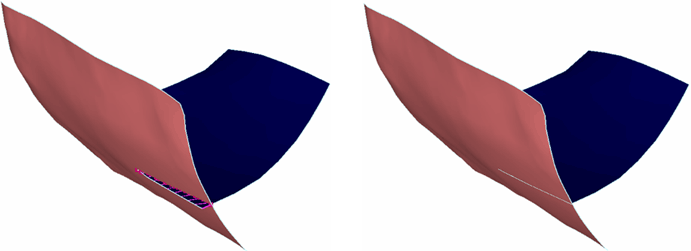
Retraction example: before (with preview) and after retraction of the blue fault click to enlarge
To clean or edit tri-meshes before you retract them, use the tools at Tools > Editing Tools or the QC tools. You can also clear and extend intersections, if needed. To view various geometrical properties of the triangles, you can display the mesh quality.
-
At the top of the Retract to Other Surfaces form, select a model. A list of the available tri-meshes in the model is displayed.
 Objects tab
-
On the Objects tab, select which tri-meshes are available for retraction:
Fault network Select to include only faults in the tri-mesh selection list. You can treat only fault-fault intersections. When the Include intersections with unconformities option is checked (see below), unconformities and intrusions also appear in the tri-mesh list.
Horizon-faults When using this tool within the Faults modeling strip, no surfaces are displayed as only elements contained in the selected fault model are permitted.
Horizon-horizon When using this tool within the Faults modeling strip, no surfaces are displayed as only elements contained in the selected fault model are permitted.
Include intersections with unconformities Check the checkbox to treat intersections with unconformities.
-
From the list of available tri-meshes, select the tri-meshes that must be retracted or checked for retraction segments by checking the individual check boxes, or right-click in the list and make a selection from the context menu.
-
On the Settings tab, specify the Retraction distance, which is the maximum allowed distance over which tri-meshes can be retracted. Tri-mesh combinations for which a larger retraction distance is required are not recognized as a retraction combination.
-
Click Preview to see the intersection/retraction areas in your 3D View. If the result is unsatisfactory, because an expected retraction area is not indicated for example, adjust the distance and preview the intersections until you are happy with the result.
Check the Perform preview automatically check box to have the retraction preview automatically performed for the selected tri-meshes and executed whenever you add a new tri-mesh to the selection or when a retraction segment has been solved.
If you selected the Horizon – Horizon workflow stage, the Preview also shows unsolved Horizon – Fault intersections, if still present. - To retract all identified tri-meshes, leave the Select retraction combination checkbox unchecked, and then click OK or Apply.
-
To retract selected combinations, select the Select retraction combination checkbox.
A list with all identified retraction combinations is displayed. Use the arrows to move through the list and show the combinations one after the other in the 3D view.
- To select the combinations to retract, click the individual check boxes or right-click the list to make a selection from the context menu. Using the << and >> button will activate a combination and bring the retraction issue to the center of the view.
-
To temporarily exclude combinations from the retraction process, right-click the retraction combination and select Discard.
The discarded combinations are de-activated and appear in the Discarded retraction combinations lines list. You can achieve the same effect by unchecking the retraction combination, but with the Discard option you can clean up the list for a cleaner view when there are many combinations. You can re-activate the discarded retraction combinations from the Discarded retraction combinations list.
- To update the 3D View to show the retraction combinations, click Show selected items.
- Click OK or Apply to apply the retraction to the selected tri-meshes.
- To bring back the discarded retraction combinations to the list of retraction combinations, click Activate discarded intersection lines.